Bookings
How to create, edit, cancel and assign tables to bookings, what each status and source means, and which notifications the customer receives.
What it’s for
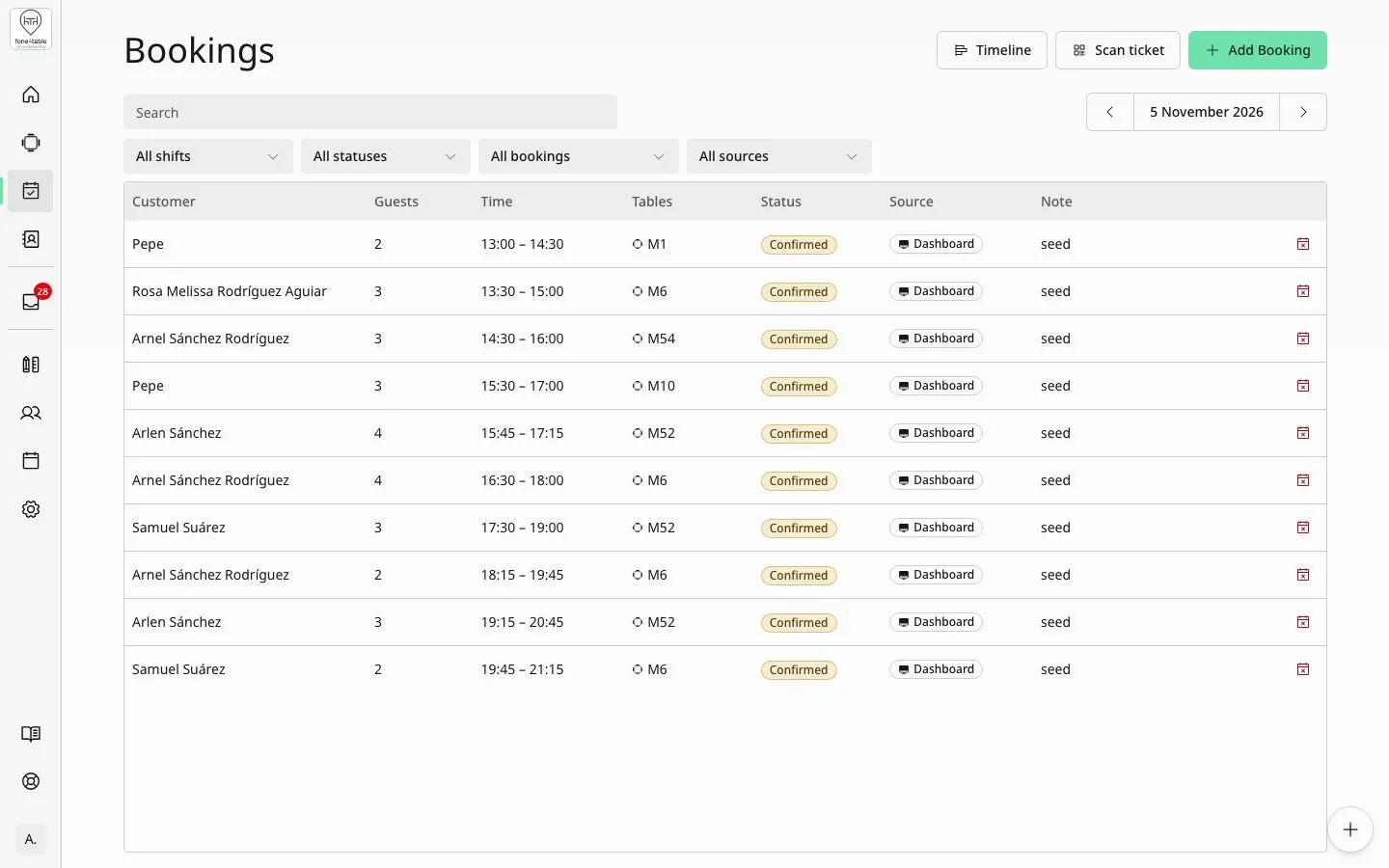
The Bookings screen shows the list of bookings for a day, with filters by shift, status, tables and source. From here you create, edit and cancel bookings and scan the tickets customers bring with them. This article also explains how statuses, incoming channels, durations, availability, table assignment and customer notifications work.
How to get there
- Side menu → Bookings.
- At the top right are the Scan ticket and Add Booking buttons.
The bookings list
Columns: Customer, Guests, Time (start and end time), Tables, Status, Source and Note. Walk-ins without a customer appear as “Walk-in”.
Filters:
- Search: searches by the customer’s first name, surname, phone or email.
- Date: Previous day / Next day arrows and calendar. The list shows a single day; if you don’t choose one, it shows today.
- All shifts: limits it to bookings that start in one of that day’s shifts.
- All statuses: Waiting, Confirmed, Sitting, Cancelled, Completed or No show.
- All bookings / With tables / Without tables.
- All sources: WhatsApp chat, WhatsApp call, Phone call, Web, Dashboard or Unknown source.
Booking statuses
- Waiting: booking with no table assigned.
- Confirmed: booking with a table assigned, waiting for the customers to arrive.
- Sitting: the customers are at the table.
- Completed: the service has finished.
- Cancelled: the booking has been cancelled.
- No show: the customers didn’t turn up.
Automatic changes: a booking created with a table starts as Confirmed, and one without a table as Waiting. Bookings from previous days that stayed in Waiting or Confirmed automatically become No show, and those that stayed in Sitting become Completed.
Booking source (channel)
- Dashboard: created by staff in the app.
- Phone call: created by the voice bot that answers the phone.
- WhatsApp chat and WhatsApp call: created by the WhatsApp assistant.
- Web: online booking made by the customer.
- Walk-in: customer without a booking seated on the spot.
- Unknown source: the channel isn’t recorded.
Common tasks
Create a booking
- Tap Add Booking (or Create booking in Maps or on Home).
- Leave Booking selected (not Walk-in).
- Choose the Date and Amount of People.
- Check the Shift. The suggested shift is the one you were viewing on the map or the shift that usually has the most bookings.
- Choose the Start Time. Each time shows how full the restaurant is at that moment.
- The End Time fills in automatically from the duration set for that number of people; you can change it.
- Optional: tap the table or tables on the map. If you don’t choose any, the booking stays in Waiting and you can assign it a table later.
- In Guest, search for an existing customer or create one by typing their name, phone or email and tapping Add.
- Optional: add a Note or use the Quick notes (Allergic, Anniversary, Birthday, Business, Celiac, Date).
- Tap Confirm.
If no table fits at that time, the form says so and suggests alternatives: other areas (“Try [areas]”) or a Later availability list with free times and tables. Tapping a suggestion applies its time and tables.
Edit a booking
- In the list, tap the booking’s row (or Edit on the map).
- Edit Booking opens with the map. Change the date, people, times, tables, customer or note.
- Tap Confirm.
Cancelled, completed or no-show bookings can’t be edited.
Cancel a booking
- In the row, tap the cancel icon (crossed-out calendar).
- In Cancel Booking, tap Confirm.
Only Waiting or Confirmed bookings can be cancelled.
Assign or change a booking’s table
- Filter by Without tables to see the ones with no table, or open the booking.
- Tap the table or tables on the map and tap Confirm.
- To move to another table or swap with another booking, use Relocate in Maps.
Check in a customer with their ticket (QR code)
- Tap Scan ticket.
- Scan the QR code on the customer’s Google Wallet or Apple Wallet ticket with the camera, or tap Enter code manually, type the Ticket code and tap Find booking.
- Check the details (guests, tables) and tap Confirm and sit.
You can only seat a booking that’s for today, has a table assigned and is in Confirmed status.
Link a customer to a completed walk-in
- In the completed walk-in’s row, tap Assign customer.
- Search for or create the customer and tap Assign. This can’t be undone.
Set booking durations
- Side menu → Settings → Bookings tab.
- In Default Duration, choose the duration applied to new bookings.
- In Duration by party size, tap Add range to give large parties more time (for example, from 5 people upwards). Each duration must be between 15 and 240 minutes.
Set up reminders
- Side menu → Settings → Channels and integrations tab.
- Switch on Automatic booking reminders.
- Choose how many reminders to send (1, 2 or 3) and the Time between reminders (every 2, 4, 6, 12 or 24 hours, counting back from the booking time).
Availability and table rules
- Only the start time counts. The booking must start within a shift that’s open that day and in a free slot. It can end after the shift closes or overlap a later block or closure; that’s correct.
- Start times go in 15-minute steps, from when the shift opens until 15 minutes before it closes. The exact closing time isn’t a valid start time.
- Each day’s open shifts and exceptions (closures and special openings) are set in Side menu → Calendar.
- You can’t create bookings for past dates or times.
- The same customer can’t have two active bookings that overlap. From the app this is allowed for customers with no phone or email.
- Areas: availability is searched across all the restaurant’s areas. If the customer asks for a specific area, or if an existing booking is being changed, only that area is searched. The Customer dining area preference option (Settings → Bookings) decides whether the voice bot and WhatsApp ask the customer which area they prefer.
- Table assignment: for bookings that come in by phone, WhatsApp or web, the system assigns the table automatically, choosing the one that best fits the party. It only joins tables that are in a Groups group (Customize Maps).
- Automatically assigned tables can change on their own if the customer changes the booking. Tables chosen by hand by staff are never moved automatically.
- Staff can choose tables with fewer seats than the party: a warning is shown, but it’s allowed.
Customer notifications
- A notification is sent to the customer when a booking is created (confirmation), when it’s changed and when it’s cancelled.
- If they’re switched on, reminders are sent before the booking as long as it’s still in Waiting or Confirmed.
- If Request reviews on Google Maps is switched on, the customer is asked for a review when the booking is completed.
- Channel: WhatsApp first (if the restaurant has its WhatsApp Business account connected and the customer has a phone number) and, if that’s not possible, email.
- If the customer has neither a phone number nor an email, no notification is sent. That’s expected, not an error.
- The customer isn’t notified when they’re moved to another table or when the booking becomes No show.
- In Channels and integrations you can also include a QR code in emails so the customer can save the booking to Google Wallet or Apple Wallet.
Frequently asked questions
Why can’t I book for 23:30? The shift probably closes at 23:30: the last start time is 23:15, because the closing time isn’t a valid start time. It could also be that the shift is closed that day in the Calendar.
Can I make a booking that ends after the shift closes? Yes. Only the start time is checked.
Why is a booking in “Waiting”? Because it has no table assigned. Assign it one and it will become Confirmed.
Why hasn’t the customer received the confirmation? Check that they have a phone number or email. It’s sent by WhatsApp first and, if that’s not possible, by email. Without either, nothing is sent.
Why does yesterday’s booking show as “No show”? Bookings that were never seated automatically become No show at the end of the day. The customer doesn’t receive any notification about it.
Can I cancel a booking that’s already seated? No. Only Waiting or Confirmed bookings can be cancelled; a seated booking is completed.
Why can’t I edit a booking? Cancelled, completed or no-show bookings can no longer be edited.
How do I change booking durations? In Settings → Bookings → Default Duration and Duration by party size.
Can the system move a booking I assigned to a table? No. Tables chosen by staff are never changed automatically.
How do I see bookings for another day? Use the arrows or the calendar in the date filter. The list shows one day at a time.
What does “Dashboard” mean in the Source column? That staff created the booking from the app.