Calendar (shifts, weekly hours and special days)
How to set up shifts, weekly hours and special days in the Calendar.
What it’s for
In Calendar you decide when people can book at the restaurant: which Shifts exist (for example Lunch and Dinner) and what time they start and end, which shifts open on each day of the week and which days are special (bank holidays, closures, extra openings). The phone bot, WhatsApp and online booking all respect this, and it also affects the bookings staff make from the dashboard.
Shifts and weekly hours used to be in other sections of Settings; they’re here now. There’s no longer a separate “Areas” section in Settings: areas, and their closures too, are managed in Customize Maps.
How to get there
- Sidebar → Settings section → Calendar.
- It has three tabs: Calendar, Shifts and Weekly hours.
- Only users with the Admin role can see it.
Common tasks
Create a shift
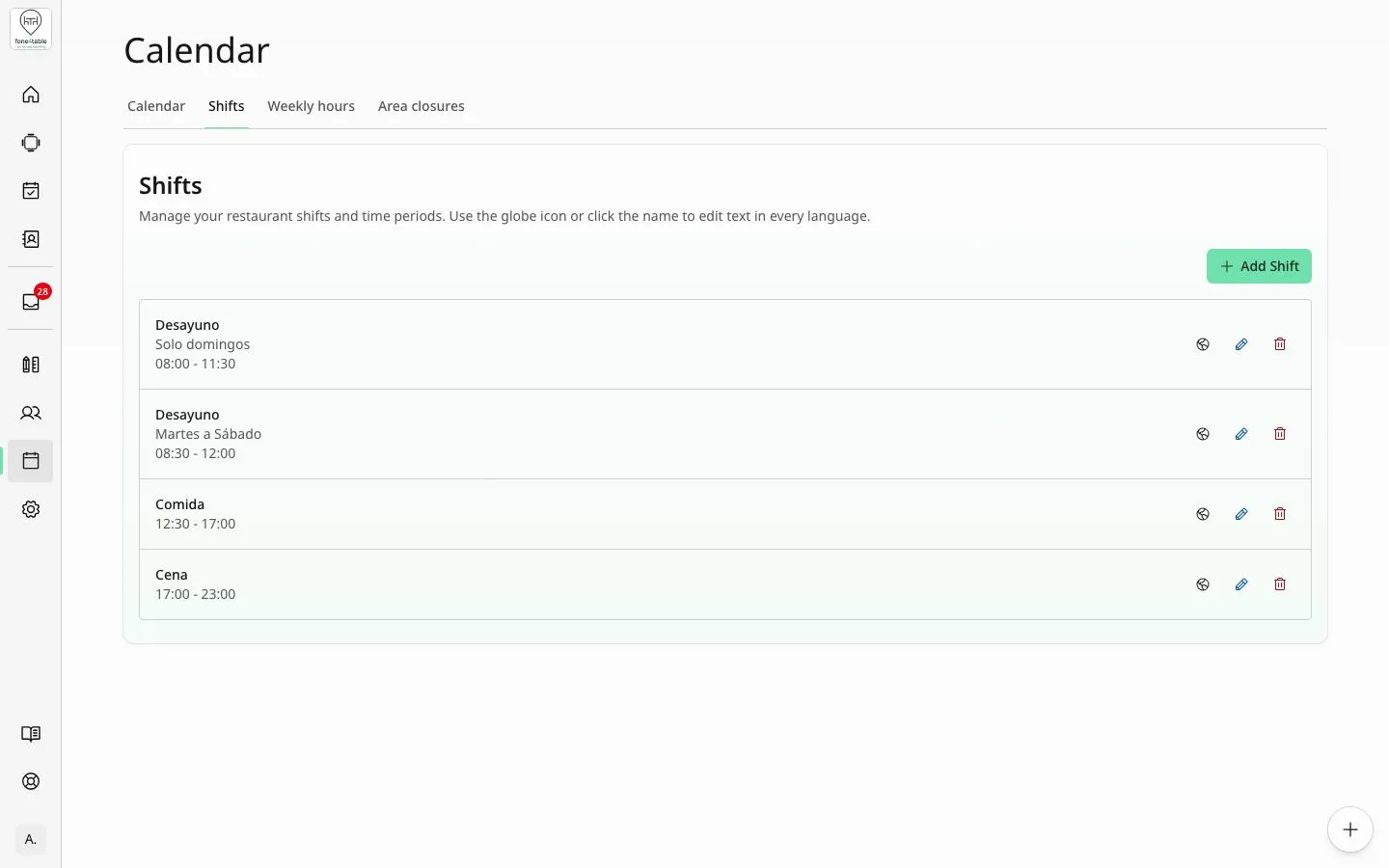
- Go to the Shifts tab and tap Add Shift.
- Type the Shift Name (e.g. “Dinner”).
- Optional: Details (optional), useful for telling apart shifts with the same name (e.g. “Second sitting”). It’s translated automatically.
- Choose the Start Time and End Time (in 15-minute steps). The end time must be after the start time.
- Tap Create Shift.
- Then switch it on for the right days in Weekly hours (see the next task).
Edit, translate or delete a shift
- Edit: in Shifts, tap the shift’s pencil, change the details and tap Update Shift.
- Translate: tap the globe icon (or the name) to edit the text in each language.
- Delete: tap the bin and confirm. This can’t be undone.
Set the weekly hours
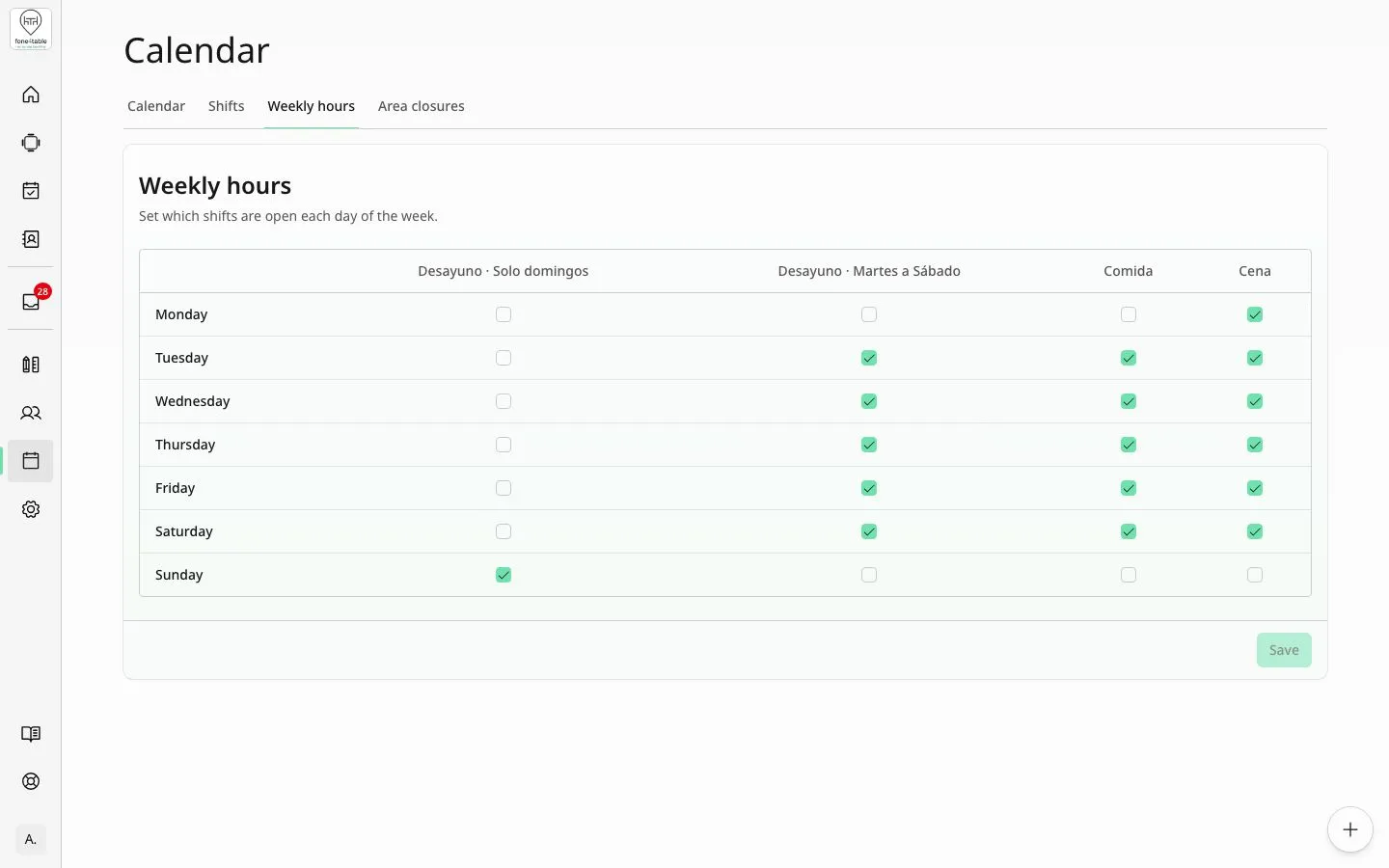
- Go to the Weekly hours tab. You’ll see a table with the days (Monday to Sunday) and a column for each shift.
- Tick the box for each shift that opens on each day and untick the ones that don’t.
- Tap Save.
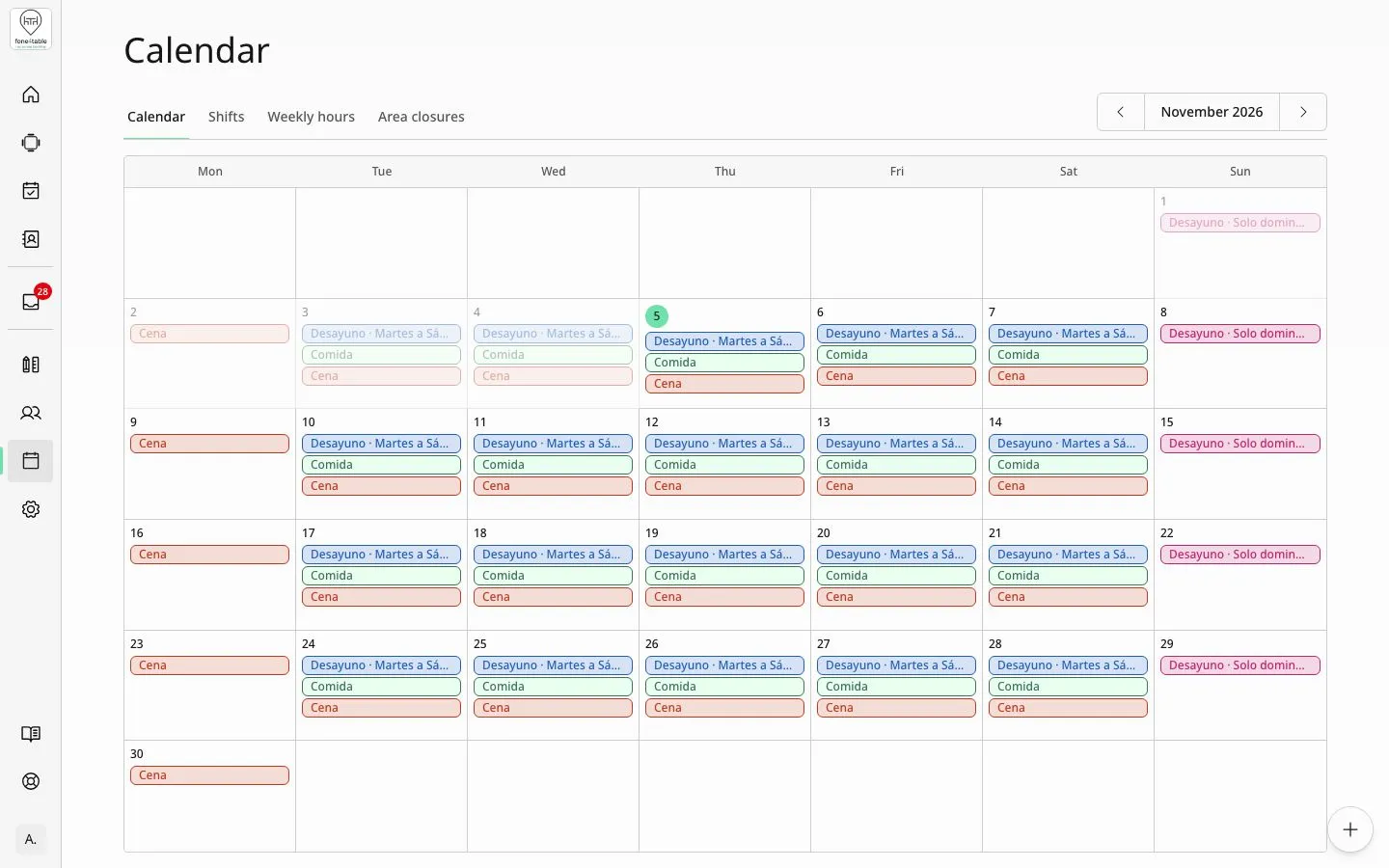
- A day with no shift ticked appears in the calendar as Closed (striped).
View the month
- Calendar tab. Use Previous month / Next month to move around.
- Each day shows the shifts that are working. You’ll also see labels such as Closed, Special opening and Area closed: … or “N areas closed”. Closed areas are only shown here; they’re closed and reopened in Customize Maps.
- Past days can’t be changed.
Close the whole restaurant for a day (bank holiday, holidays)
- In the Calendar tab, tap the day.
- Create special day opens. In Working shifts, untick all the shifts.
- Optional: type the Reason (e.g. “Christmas”).
- Tap Create special day. The day will show as Closed.
Close just one shift on a specific day
- Tap the day in the calendar.
- In Working shifts, untick the shift that won’t open (for example, Lunch).
- Tap Create special day (or Save changes if the day was already special).
Open a shift that’s normally closed (special opening)
- Tap the day in the calendar (you can also tap days that show as Closed because of the weekly hours).
- In Working shifts, shifts that don’t normally open that day appear with a calendar icon with a ”+” (“normally closed on this weekday”).
- Select it and tap Create special day. That day will show Special opening and the shift can be booked.
Remove a special day
- Tap the day in the calendar.
- Tap the Reset to default button. The day goes back to following the weekly hours.
Close an area (zone)
Area closures, for some dates or indefinitely, are done in Customize Maps → Areas panel. The steps are in the Customize maps article. Here, in the Calendar tab, the affected days show Area closed: ….
Rules and limits
- Only the start time counts. A booking is valid if its start time falls within a shift that’s open that day. It can end after the shift ends; that’s correct.
- The shift’s end time isn’t a valid start time. Example: with a shift from 20:00 to 23:00, the last time to start a booking is 22:45.
- Start times go in 15-minute steps.
- A special day overrides the weekly hours for that date only.
- Closing a shift or closing an area doesn’t cancel or move existing bookings.
- Area closures affect customers: the bot, WhatsApp and online booking don’t offer tables in an area that’s closed on that date. Staff can still assign tables in that area from the dashboard.
- Area closures are for whole days, not hours. You can’t block just a few hours of a day: a special day opens or closes whole shifts.
- Availability is searched across all open areas. If the customer chooses an area (or when a booking is being changed), only that area is searched.
- If you close an area the customer wants, that area won’t be offered to them on those dates.
Frequently asked questions
We’re closed on 25 December. How do I mark it? Calendar tab → tap the 25th → untick all the Working shifts → type the Reason → Create special day.
We close on Mondays, but this Monday is a bank holiday and we’re open at lunchtime. Tap that Monday, select the lunch shift (it’s marked as normally closed) and tap Create special day. It will show as Special opening.
The dinner shift ends at 23:00. Can someone book at 22:45 even if they finish at 1:00? Yes. The only check is that the start time is within the shift. At 23:00 exactly, a booking can no longer start.
If I close a day that already has bookings, are they cancelled? No. Existing bookings are kept; you’ll need to deal with them yourself (call the customer, cancel the booking or move it).
I want to close the terrace just this weekend. Customize Maps → Areas panel → the terrace’s three dots → Block area for dates → choose the Date range → Schedule closure.
Can I close the terrace just in the evening? No: area closures are for whole days. If you need the terrace not to be booked that evening, one option is to block its tables for customers in Customize Maps and unblock them afterwards.
I’ve created a new shift but the bot doesn’t offer it. Check in Weekly hours that it’s ticked on the right days and tap Save.
How do I undo a special day? Tap the day and use Reset to default.
Where are the “Areas” that used to be in Settings now? Areas are created, edited and closed in Customize Maps, in the Areas panel.
Can staff book in a closed area? Yes, from the dashboard. The closure only stops customers booking by phone, WhatsApp or web.