Customers
The customer directory: search, view a customer's profile and history, and add, edit or delete a customer.
What it’s for
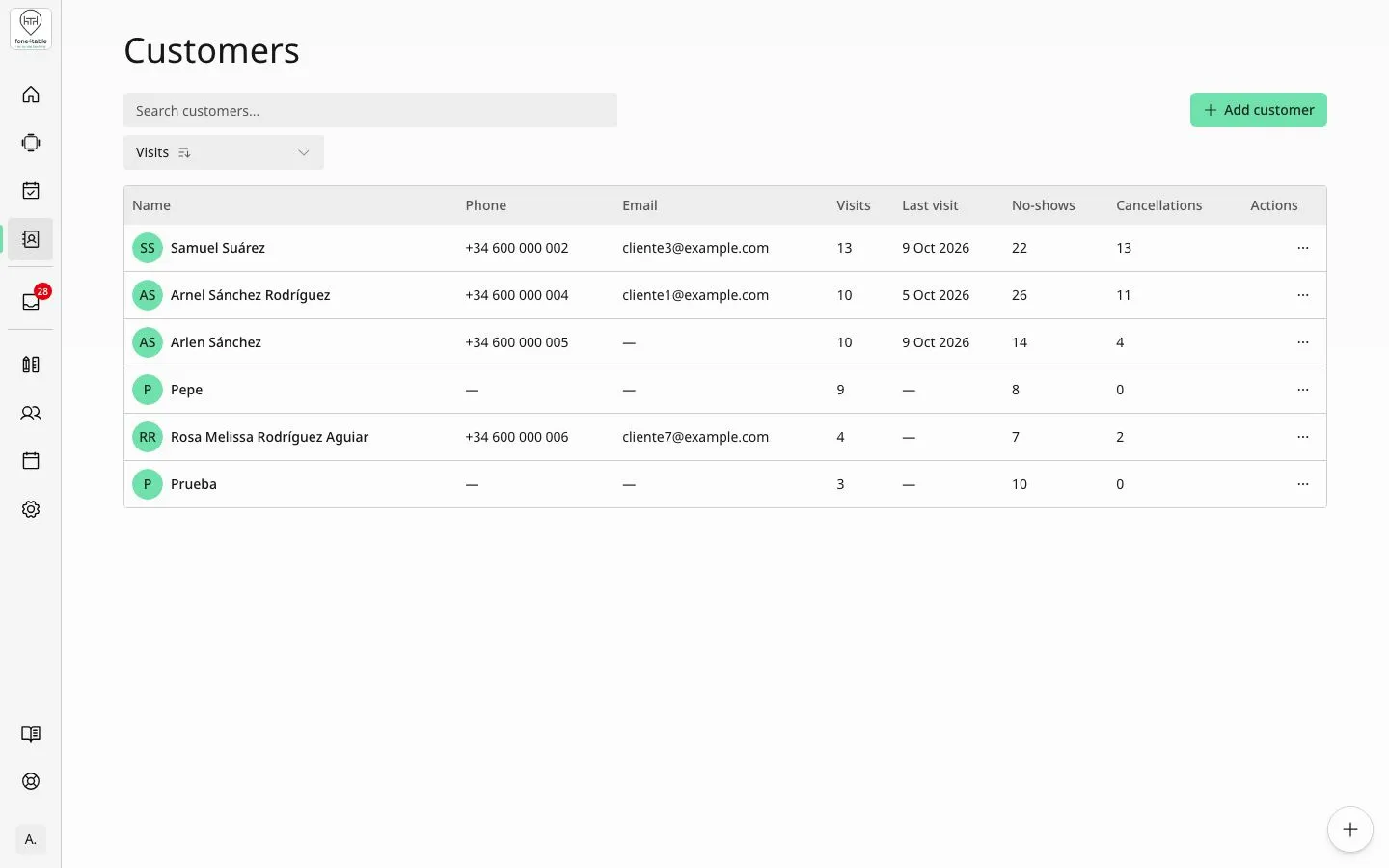
The Customers screen is the restaurant’s customer directory. Here you see everyone who has booked (by phone, WhatsApp, web or from the dashboard itself) or whom someone on the team has added by hand. You can search and sort them, view their profile with their contact details and booking history, and create, edit or delete customers.
How to get there
In the side menu, tap Customers (it’s in the first group, below Home, Maps and Bookings).
What you see in the list
Each row is a customer, with these columns:
- Name: first name and surname, with a circle showing their initials.
- Phone and Email (a dash ”—” if they don’t have one).
- Visits: how many bookings the customer has kept. Confirmed, waiting, seated and completed bookings count; no-shows and cancellations don’t.
- Last visit: date of the last completed booking.
- No-shows: bookings where the customer didn’t turn up.
- Cancellations: cancelled bookings.
- Total spend: total spent on completed bookings. This column only appears if the restaurant has Reservation Revenue switched on in the booking settings.
- Actions: the three-dot button, with Edit and Delete.
The list loads customers in batches: as you scroll down, more load automatically.
Common tasks
Search for a customer
- Type in the Search customers… box above the list.
- You can search by first name, surname, phone or email. Part of it is enough (for example, a few digits of the phone number or the start of the surname), and upper or lower case doesn’t matter.
- The list updates on its own as soon as you stop typing. If there are no matches you’ll see No customers found.
- To see everyone again, clear the text in the box.
Sort the list
- Tap the sort drop-down below the search box (by default it shows Visits).
- In Sort by, choose: Visits, Last visit, No-shows, Cancellations, Total spend (only if booking revenue is switched on), Date added or Name.
- In Order, choose Ascending or Descending.
- To go back to the normal order (most visits first), tap Reset, which appears next to the drop-down when you’ve changed the order.
Customers with no data for the chosen field (for example, with no visits) always appear at the end.
View a customer’s profile
- Tap the customer’s row in the list.
- A panel opens on the right with:
- At the top, the name and a label showing how often they come: No bookings yet (none), First booking (one), Returning (2 to 9) or Regular (10 or more).
- Contact: Phone, Email and Language.
- Bookings: Total (bookings that count, excluding no-shows and cancellations), Upcoming (active bookings that haven’t finished yet), Last visit, No-shows and Cancellations.
- Booking history: all their bookings, from newest to oldest. Each one shows the date and time, an icon for where the booking came from, the number of people, the tables assigned, the amount (if booking revenue is switched on) and the booking status. More load as you scroll down.
- At the bottom are the Edit and Delete buttons.
- To close the panel, tap outside it or on the X.
Add a customer
- Tap Add customer (top right of the list).
- Fill in the Add Customer form:
- Name (required).
- Last Name (optional).
- Phone Number (optional): choose the country code and type the number.
- Email (optional).
- Language (required): the restaurant’s language is filled in. If you type a phone number with another country’s code, that country’s language is suggested, unless you’ve already chosen one yourself.
- Tap Submit. You’ll see the message Customer created successfully.
Edit a customer
- Open the three-dot menu on their row and tap Edit, or open their profile and tap Edit.
- In the Edit Customer window, change the details you need.
- Tap Save customer. You’ll see Customer updated successfully.
The changes apply to that customer across all their bookings.
Delete a customer
- Open the three-dot menu on their row and tap Delete, or open their profile and tap Delete.
- If the customer has upcoming bookings, you’ll see Can’t delete… and a message saying they must be cancelled first. Cancel them from Bookings and try again.
- If they have no upcoming bookings, you’ll see Delete… with the warning This deletes the customer and can’t be undone. Tap Delete to confirm or Cancel to go back.
- You’ll see Customer deleted successfully.
Rules and limits
- Only Name and Language are required. Phone and email are optional, but if you enter them they must be valid; otherwise you’ll see Please enter a valid phone number or Please enter a valid email.
- You can’t delete a customer with upcoming bookings (confirmed, waiting or seated ones that haven’t finished yet). Deleting can’t be undone.
- The customer profile has no notes or preferences field: the details it stores are first name, surname, phone, email and language.
- The visits, no-shows, cancellations and spend figures are calculated automatically from bookings; they can’t be edited by hand.
- Notifications to the customer about their bookings are sent by WhatsApp first and, if that’s not possible, by email. If the customer has neither a phone number nor an email, no notification is sent. They’re sent in the Language on their profile.
- Customers with no phone or email are deleted automatically after a while: about 45 days after they were created or last edited, and never before their last booking has passed. If you want to keep a customer, add a phone number or email.
Frequently asked questions
How do I find a customer if I only have part of the phone number? Type those digits in Search customers…. The search finds partial matches in the phone number, first name, surname and email.
Why can’t I delete a customer? Because they have upcoming bookings. Cancel them first in Bookings and then you’ll be able to delete the customer.
Can I recover a customer I’ve deleted? No. Deleting a customer can’t be undone; you’d have to create them again with Add customer.
Where do I note a customer’s preferences or allergies? The customer profile has no notes or preferences field. It only stores first name, surname, phone, email and language.
Why can’t I see the Total spend column? It only appears if the restaurant has Reservation Revenue switched on in the booking settings.
What counts as a visit? Every confirmed, waiting, seated or completed booking. No-shows and cancellations are counted separately, in their own columns.
What do the Returning and Regular labels mean? They show how often the customer books: First booking if they have one, Returning from 2 to 9 and Regular from 10 upwards.
A customer isn’t receiving notifications about their booking. Why? Notifications go by WhatsApp first and, if that’s not possible, by email. If the customer has neither a phone number nor an email on their profile, they aren’t notified. Check their details are correct with Edit.
A customer I created has disappeared. What happened? If they had no phone or email, they’re deleted automatically about 45 days after they were last edited (and never before their last booking has passed). To avoid this, always save a phone number or email.
If I change a customer’s phone number, does it change in their bookings? Yes. The changes apply to the customer across all their bookings.