fone4table overview
What fone4table is, how the app is organised, what each menu section means and what each role can do.
What it’s for
fone4table is the restaurant’s booking app. A phone assistant answers the restaurant’s calls and, if the restaurant has it switched on, a WhatsApp assistant answers messages. Both can create, change and cancel bookings. Customers can also book on the online booking page. Staff manage everything from this web app: the live floor map, bookings, customers, pending calls and messages, the shift calendar and settings.
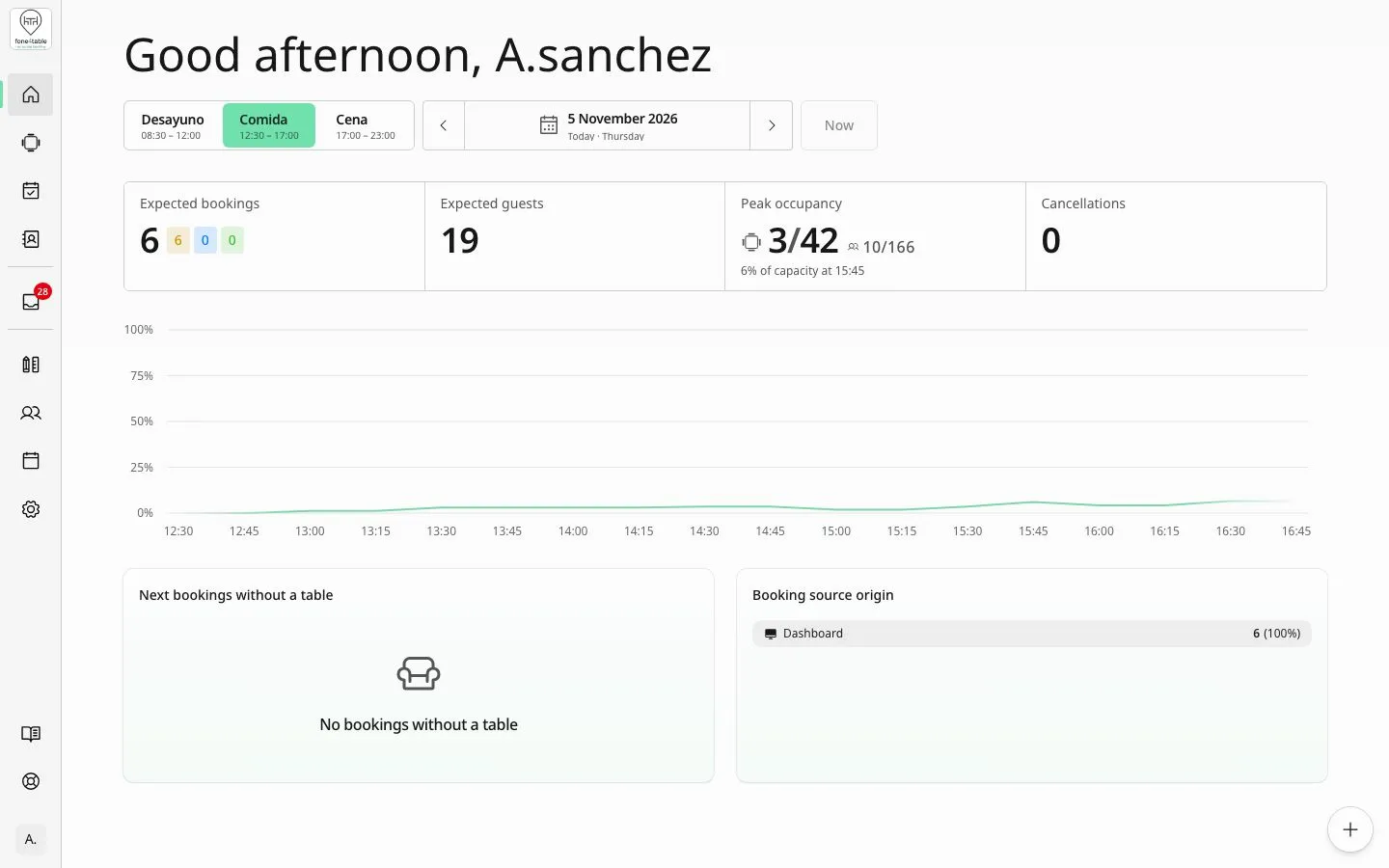
Side menu
The side menu is on the left (on a mobile, open it with the menu button). At the top are the day-to-day screens; below them, the Communications group (Inbox and Messages) and, for admins only, the Settings group (Customize Maps, Users, Calendar and Settings). At the very bottom are Help centre and Help. These are its options, in order:
- Home: summary of the day and the shift (bookings, guests, calls, booking sources).
- Maps: the live floor map, with the status of every table.
- Bookings: the list of bookings, with filters and search.
- Customers: each customer’s profile and history.
- Inbox: calls the phone assistant couldn’t resolve and that need a call back. It shows a blue badge while there are open entries.
- Messages: WhatsApp conversations the assistant hands over to staff. It only appears if the restaurant has WhatsApp switched on. It shows a blue badge when there are unread messages.
- Customize Maps: the editor for rooms, areas, tables and table groups.
- Users: the people who can sign in to the app.
- Calendar: shifts, weekly hours, special days and closures.
- Settings: restaurant preferences and integrations.
- Help centre: opens this documentation in a new tab, at the article for the screen you’re on.
- Help: opens the help assistant, which answers questions about using the app in a chat. Only admins can see it.
When the menu is collapsed you only see the icons; the blue badges turn into a blue dot on the icon.
Words the app uses
- Area (or zone): a part of the dining room, for example “Terrace” or “Main room”. Tables belong to an area.
- Shift: a time slot in which the restaurant takes bookings, for example “Lunch” or “Dinner”.
- Table group: tables that can be joined for large parties.
- Walk-in: a customer who arrives without a booking and is seated straight away.
- Phone assistant: the automated system that answers the restaurant’s phone.
Roles
- Admin: can use the whole app, including Users, Calendar, Settings, Customize Maps and the help assistant.
- User: floor staff; they work with the map, bookings, customers, the Inbox and Messages, but don’t see the admin options or the help assistant. They can open the Help centre.
Contacting support
The fone4table support team can be reached at support@fone4table.com. You can email them directly or, if you’re an admin, from the help assistant with Send to support.
Frequently asked questions
Why can’t I see Messages in the menu? It only appears if the restaurant has WhatsApp connected. You connect it in Settings (see the preferences and integrations section).
Why can’t a colleague see Settings, Calendar or Help? They have the User role. An admin can change their role in Users.