Home
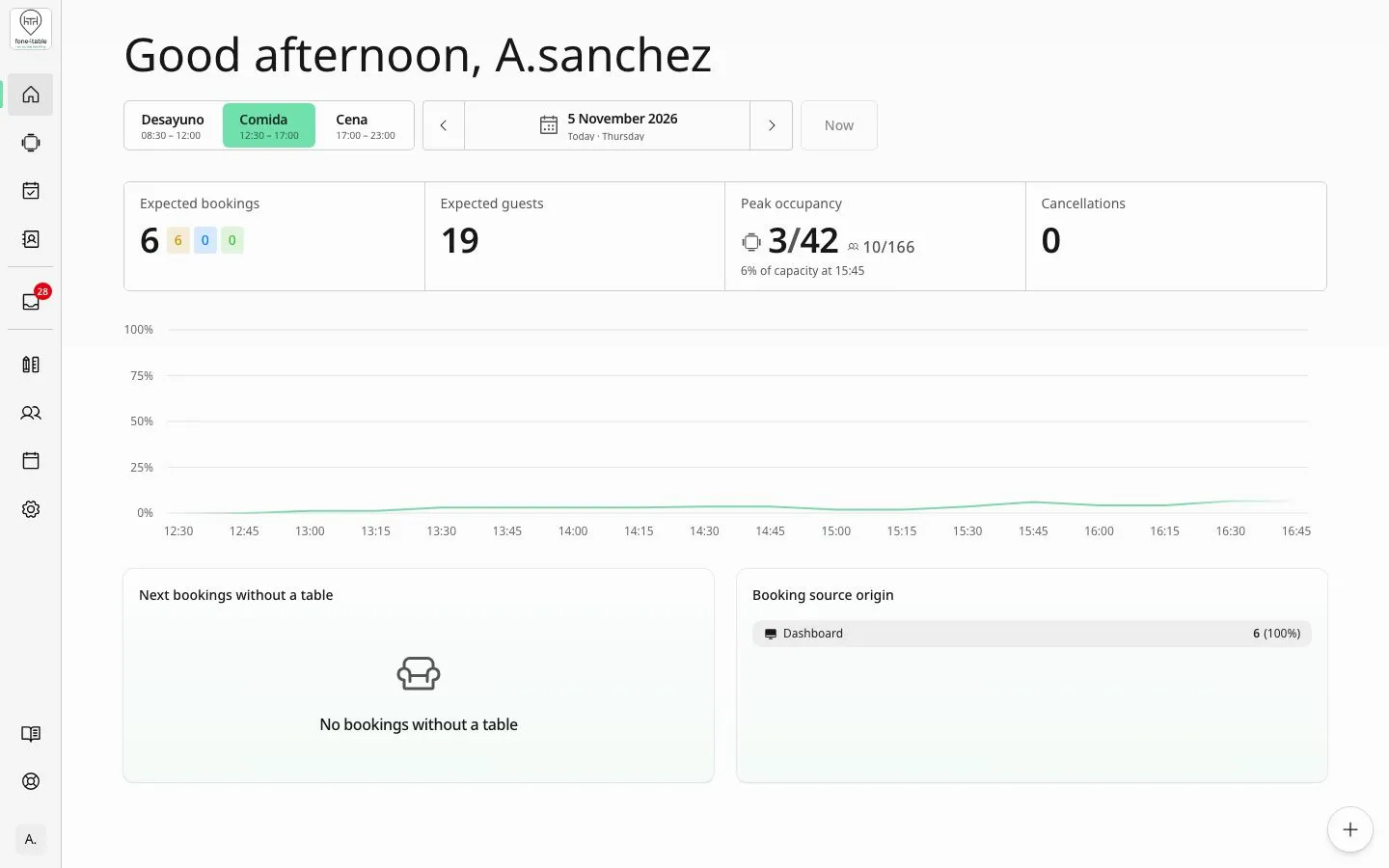
The Home screen: bookings, guests, occupancy by hour, cancellations and booking sources for each shift.
What it’s for
The Home screen is a summary of one shift: how many bookings and guests you’re expecting, when the restaurant is busiest, how many cancellations there are, which bookings still have no table and which channel the bookings came in through. By default it shows today’s current shift, but you can look at any other day and shift. On top of that, on the first day of every month admins receive an email report with the previous month’s statistics.
How to get there
- Side menu → Home.
- It’s also the screen that opens when you sign in to the app.
- The first time, a guided tour (“Welcome to fone4table”) explains the main parts of the screen and the menu.
What you see on the screen
Header and day and shift selector
At the top there’s a greeting based on the restaurant’s local time (“Good morning”, “Good afternoon” or “Good evening”) and the controls to choose which shift to view:
- Day: Previous day and Next day arrows, and a button with the date that opens the calendar. If it’s today, the date shows as “Today”.
- Shift: the shifts the restaurant has open that day according to the Calendar. Closed days and shifts closed that day don’t appear.
- Now: takes you back to today and to the shift that matches the current time. It’s disabled when you’re already viewing the current shift.
If no shift is open that day, you’ll see “No shifts today” (or “No shifts”) and no figures are shown.
Shift indicators
All the figures count the bookings whose start time falls within the chosen shift.
- Expected bookings: bookings in the shift that aren’t cancelled or marked as no-shows. Next to it there are three coloured counters:
- yellow: bookings still to arrive (Waiting and Confirmed statuses);
- blue: seated bookings;
- green: completed bookings.
- Expected guests: total number of people in those expected bookings.
- Peak occupancy: the busiest moment of the shift, measured in 15-minute slots. It shows occupied tables out of the restaurant’s total tables and seated people out of the total seats. Below, it shows the percentage of capacity and the time of the peak, for example “65% of capacity at 21:30”.
- Cancellations: number of cancelled bookings in that shift.
- Collected: only appears if the restaurant has Reservation Revenue switched on in Settings → Bookings. It’s the total of the amounts entered when completing that shift’s bookings, in euros.
Total capacity is the sum of the seats at every table in the restaurant, across all areas.
Occupancy chart
Shows how the restaurant fills up over the shift, in 15-minute slots: the percentage of seats occupied and the number of seats at each moment. A booking counts in every slot between its start time and its end time.
- If the shift has no bookings you’ll see “No bookings in this shift” with the Create booking button.
- If the tables have no capacity set you’ll see “No table capacity” and the Customize Maps button to set them up.
Next bookings without a table
Lists up to four bookings in the shift that don’t have a table assigned yet (soonest first), with name, phone, time and number of people. Tap one to open the booking and assign it a table on the map. If there are none, you’ll see “No bookings without a table”.
Booking sources
Breakdown of the shift’s expected bookings by the channel they came in through, with number and percentage: Dashboard (created by staff in the app), Phone call (voice bot), WhatsApp chat, WhatsApp call and Web (online bookings). Only channels with at least one booking appear.
These last two cards are only shown when the shift has expected bookings.
Common tasks
View the current shift
- Go to Home from the side menu.
- If you were looking at another day or shift, tap Now.
Look at another day or shift
- In the header, use Previous day / Next day or tap the date and pick the day in the calendar.
- Choose the shift in the shift selector.
- To go back to the current moment, tap Now.
Create a booking from Home
- If the shift has no bookings, tap Create booking in the occupancy chart.
- The booking form opens with the day and shift you’re viewing already selected.
- Fill in the details and tap Confirm (see the Bookings section for details).
Assign a table to a booking that doesn’t have one
- In Next bookings without a table, tap the booking.
- On the map that opens, tap the table or tables you want to assign.
- Tap Confirm.
Switch on the revenue indicator
- Side menu → Settings → Bookings tab.
- Switch on Reservation Revenue.
- From then on, you’ll be asked for the amount when completing a booking, and the Collected card appears on Home.
Monthly email report
- It’s sent automatically on the 1st of every month, in the morning, with the data for the whole previous month.
- Users with the admin role for the restaurant receive it by email. You don’t need to switch it on.
- Subject: “Statistics for [month] · [restaurant]”. It’s sent in Spanish, or in English if the restaurant’s language is English.
- It includes: calls, calls converted into bookings and cancelled; total bookings and guests; bookings per day; occupancy per shift (open days, occupied seats and percentage); and booking sources by channel.
- If the restaurant has booking revenue switched on, it also includes revenue and the average per booking.
- If there were no bookings that month, the email says so (“There were no bookings this month.”).
- It’s sent only once each month.
Rules and limits
- Home always shows one specific day and shift; there’s no date-range view.
- A booking belongs to the shift it starts in, even if it ends later.
- Cancelled bookings and no-shows don’t count towards expected bookings, guests, occupancy or sources; cancelled ones only add to Cancellations.
- Peak occupancy and the chart use the capacity of every table in the restaurant. If the tables have no capacity, the percentage can’t be calculated.
- Only the shifts open that day according to the Calendar (weekly hours and exceptions) appear.
- Collected only adds up completed bookings with an amount.
Frequently asked questions
Why does Home say “No shifts today”? Because the Calendar has no shift open for that day (a closed day or an exception). Check it in Side menu → Calendar.
What’s the difference between “Expected bookings” and the coloured numbers? “Expected bookings” is the shift total excluding cancellations and no-shows. The coloured numbers break it down: yellow, still to arrive; blue, seated; green, completed.
Why is the occupancy percentage so low when I have lots of bookings? It’s calculated on the seats at every table in the restaurant, across all areas, in 15-minute slots. If bookings are spread across the shift, the peak can be lower than it seems.
I can’t see the “Collected” card. Why? It only appears if Reservation Revenue is switched on in Settings → Bookings.
Why does a lunch booking appear even though it ends at dinner time? Bookings count in the shift they start in.
What does “Dashboard” mean in the booking sources? These are the bookings staff created from the app. “Phone call” are the ones from the voice bot; “Web”, online bookings.
Who receives the monthly report, and when? The restaurant’s admins, by email, on the 1st of every month, with the previous month’s data.
I haven’t received the monthly report. What should I do? Check that your user has the admin role and look in your spam folder. If it still doesn’t arrive, contact support.
Can I see data for past days? Yes. Choose the day with the arrows or the calendar in the header and select the shift.