Inbox
The Inbox: calls the phone assistant didn't resolve, how to return them and how to mark them as completed.
What it’s for
The Inbox collects the calls that couldn’t be resolved and where it’s worth calling the customer back. For example: there was no availability for what they asked for, the customer hung up before finishing, the voice assistant couldn’t handle the request, or the call was transferred to the restaurant and nobody picked up.
Each entry corresponds to a phone number. If the same person calls several times, their calls are grouped into a single entry instead of creating duplicate entries. Once you’ve dealt with the customer (for example, you’ve called them back), you mark the entry as completed.
How to get there
In the side menu, in the Communications group, tap Inbox.
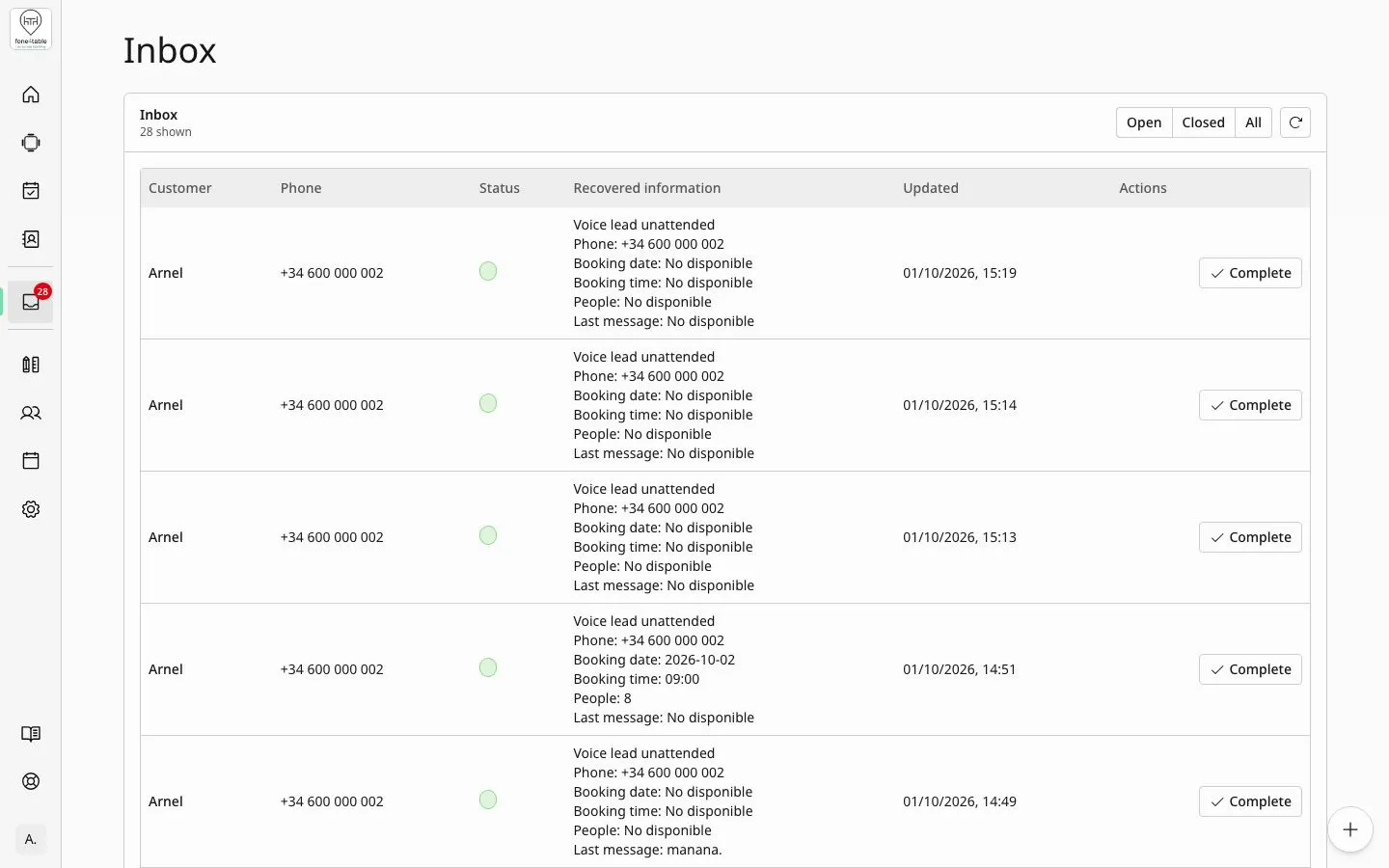
What you see on the screen
At the top there are three tabs to filter by: Open (pending ones; this is the one you see when you arrive), Closed (ones already completed) and All. Next to them is the refresh button (Refresh inbox). You’ll also see how many entries are shown.
Each row in the table has:
- Customer: the customer’s name if known; otherwise, their phone number.
- Phone: the number they called from.
- Status: Open or Closed.
- Recovered information: what the assistant managed to find out in the most recent call. Depending on the case: phone number, requested date and time, number of people, comments or the customer’s last message. If the person has called more than once, a label such as 3 calls appears.
- Updated: date and time of the last call or the last change.
- Actions: the Complete button.
The list refreshes itself every few seconds while you have it open.
Common tasks
View an entry’s details
- Tap the entry’s row.
- The Entry details window opens with Customer, Phone, Status, Reason, Recovered information and Updated.
- If the customer has called several times, under Recovered information you’ll see each call separately, from newest to oldest, with its date and time, its reason and what was collected in it.
- Close the window with the X or by tapping outside it.
The reasons you might see include, for example: No availability, AI unanswered, Transfer unavailable (the call was transferred to the restaurant and nobody answered), Caller hung up, Call timed out and Call failed.
Complete an entry (once you’ve dealt with the customer)
- In the Open tab, find the entry.
- Tap Complete in the Actions column.
- In the Complete inbox entry? window, tap Complete to confirm, or Cancel to go back.
- You’ll see the message Entry completed. The entry moves to the Closed tab and no longer counts towards the blue number in the side menu.
Look at entries already completed
- Tap the Closed tab (or All to see them all together).
- Tap any row to see its details. On closed entries the Complete button is disabled.
Refresh the list by hand
- Tap the circular arrows button (Refresh inbox) next to the tabs.
The blue number and the sound alert
- In the side menu, next to Inbox, a blue number appears while there’s at least one open entry. The number is how many entries are open (from 100 onwards it shows “99+”). When you complete them all, the number disappears.
- When a new entry arrives, or a new call is added to an entry that was already open, a short sound plays. It plays on any screen of the dashboard, not just in the Inbox, and also if you have the dashboard open in another browser tab.
- The alert doesn’t play when you open or reload the page for things that were already pending: only for what arrives afterwards.
- Because of browser rules, the alert can only play after you’ve clicked or pressed a key in the dashboard at least once since you opened it.
- Outside the Inbox, the number and the alert can take up to half a minute to reflect a new call.
Rules and limits
- Only calls that were left unresolved reach the inbox. For example, calls where a booking was made, or that were transferred to the restaurant and someone answered, don’t arrive.
- There’s only one entry per phone number. A new call from the same number is added to its entry.
- If a customer whose entry was already completed calls again and that call isn’t resolved either, the same entry reopens on its own, with the new call added.
- There’s no button to reopen an entry by hand.
- Entries are deleted automatically 3 days after the last call from that number, whether they’re open or closed. If the customer calls again after that, a new entry is created.
- The list shows at most the 120 most recent entries in each tab.
Frequently asked questions
What do I do with an inbox entry? Check the recovered information, call the customer to deal with what they needed and, when you’re done, tap Complete.
Why does a customer show “3 calls”? Because they’ve called several times from the same number. All their calls are grouped into a single entry; open the entry to see each one.
I completed an entry by mistake. Can I reopen it? There’s no button to reopen it. You’ll find it in the Closed tab with all its information. It only reopens on its own if that number calls again and the call isn’t resolved.
A completed entry has reappeared in Open. Why? The same number called again and that call wasn’t resolved either, so the entry has reopened with the new call.
Why has an entry disappeared? Entries are deleted automatically 3 days after the last call from that number.
Why is the blue number still in the menu? Because there’s still at least one open entry. The number is how many entries are open; it disappears when you complete them all.
I don’t hear the alert when a call comes in. What’s wrong? The browser only lets the alert play after you’ve clicked or pressed a key in the dashboard. Click anywhere and also check your computer’s volume. Remember it doesn’t play for things that were already pending when you opened the page.
Why does an entry show the phone number instead of the name? Because the customer’s name couldn’t be found out during the call. Their number is shown so you can call them.
What does “Transfer unavailable” mean? The assistant tried to transfer the call to the restaurant and nobody answered, so the customer wasn’t attended to.