Users (team, roles, access and tutorials)
How to add colleagues, change their role, remove them, manage passwords and repeat the guided tutorials.
What it’s for
In Users you manage who on the team can sign in to the restaurant’s app and with what permissions. From here you add a colleague (they receive an invitation email), change their role or remove their access. This section also explains how to sign in, how to recover or change your password and how the guided tours (tutorials) that appear the first time work.
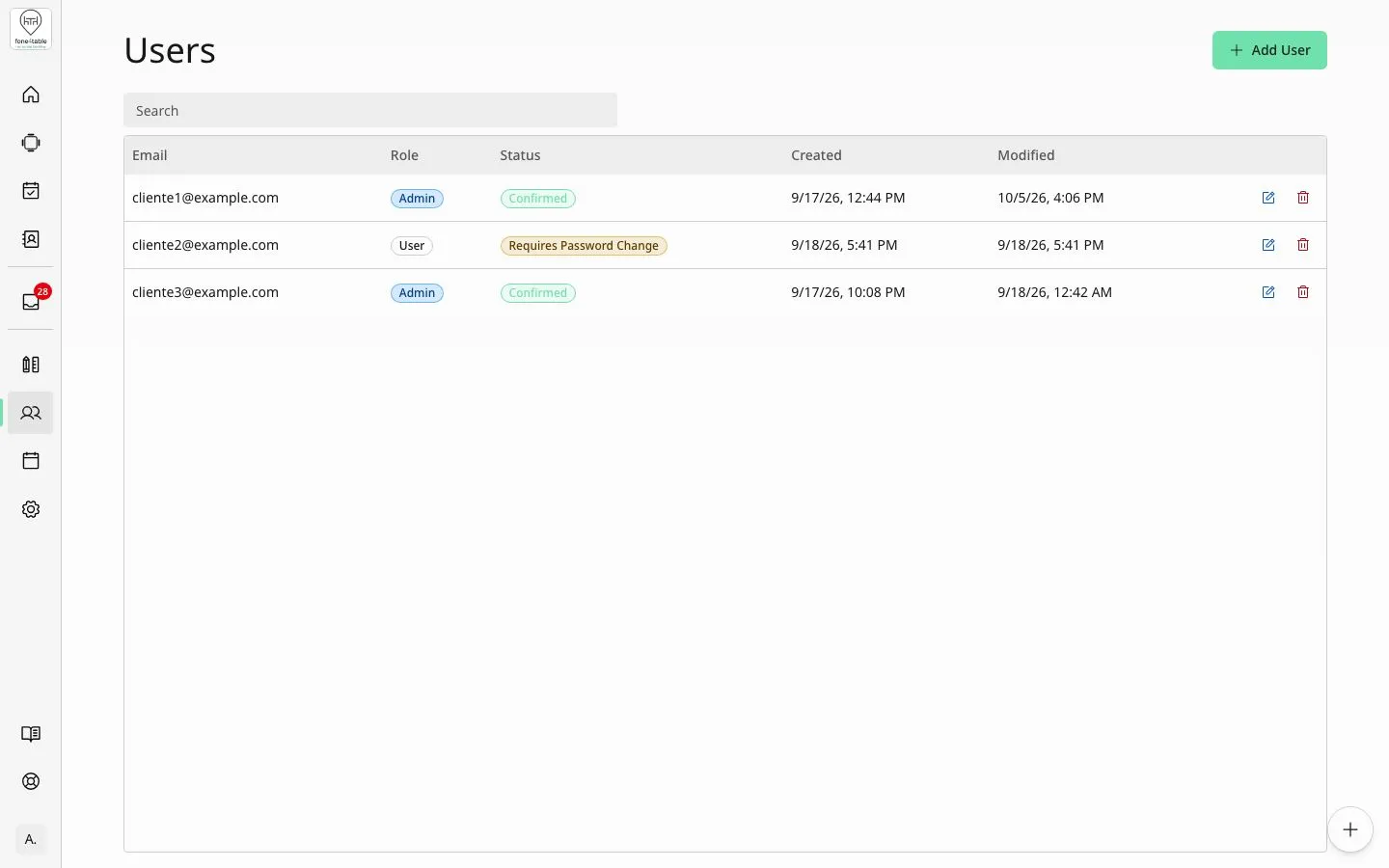
How to get there
- Sidebar → Settings section → Users.
- Only users with the Admin role can see it.
Roles
- Admin: sees and uses everything. As well as the day-to-day features, they have the Settings section in the sidebar with Customize Maps, Users, Calendar and Settings (bookings, channels and integrations, brand, etc.).
- User: for day-to-day work. They see Home, Maps, Bookings, Customers, Inbox and Messages (if WhatsApp is switched on). They don’t see the Settings section of the sidebar: they can’t edit maps, shifts or the calendar, or manage users. If they try to open those pages, the app sends them back to Home.
- You may also see the Master role in the list: it’s an account reserved for the fone4table team. It can’t be assigned to anyone at the restaurant.
Common tasks
Add a colleague
- Go to Users and tap Add User.
- Type their Email.
- In Role, choose Admin or User.
- Tap Submit. You’ll see “User created successfully”.
- Your colleague receives an email with the subject “Your fone4table access is ready”, in the restaurant’s language. No password is sent by email.
- The first time, your colleague must set their password: from the Recover password link in the email, or on the sign-in screen by tapping Forgot your password? (see “Recover your password”).
Change a user’s role
- In the Users list, tap that person’s pencil icon. Edit User opens.
- Change the Role.
- Tap Submit. You’ll see “User updated successfully”.
- The email address can’t be changed. If someone needs a different email, create a new user with that email and delete the old one.
Delete a user
- In the list, tap that person’s bin icon.
- Confirm in Delete User. That person will no longer be able to sign in. This can’t be undone.
- You can’t delete your own user.
Search for a user
- Type in the Search box above the list.
- The list shows Email, Role, Status, Created and Modified.
Sign in
- On the Login to your account screen, type your Email and your Password.
- Tap Login.
- If the account asks for a new password, Set a new password appears: type the New password, repeat it in Confirm new password and tap Set password.
Recover your password (or set it for the first time)
- On the sign-in screen, tap Forgot your password?.
- Type your email and tap Send reset code.
- You’ll receive a “Reset your password” email with a code.
- Type the code (“Verification code”), the new password (“New password”) and repeat it (“Confirm new password”). Tap “Reset password”.
- When you see the message saying the password has been reset, tap “Sign in” and sign in with the new password.
- If you got the email address wrong, use “Try a different email”.
Change your password while signed in
There’s no option to change your password inside the app. Log out (your account menu, at the bottom of the sidebar → Log out) and use Forgot your password? on the sign-in screen.
Change language or theme
Open your account menu at the bottom of the sidebar. There you’ll find Language, Theme and Log out.
Tutorials (guided tours)
- The first time someone opens certain screens, a guided tour appears that points out the important parts:
- Home: welcome, shift summary, the menu for getting around the app, the settings area and your account menu.
- Customize Maps: how to add tables and shapes, place them, full screen and zoom.
- Settings: how to move between the sections and the search box.
- Tour buttons: Next, Previous, Skip and, at the end, Done. The step is shown at the top (“2 of 5”).
- Each tour is shown only once per user. When you tap Done or Skip it’s marked as seen and won’t appear again, even if you sign in from another device.
- New users see the tours from the start.
- The Home and Settings tours appear once the restaurant has finished its initial setup. The Customize Maps tour can also appear during that setup.
Rules and limits
- Only Admins can see, create, edit and delete users.
- When adding a user, only the email and role are requested. You can choose Admin or User.
- Passwords aren’t sent by email: each person sets their own with Forgot your password?.
- The password must have at least 8 characters, one upper-case letter, one lower-case letter and one special character (for example ! @ # or *).
- A user’s email can’t be changed.
- You can’t delete yourself.
- Possible statuses in the list: Confirmed or Requires Password Change (they’ll be asked for a new password when they sign in).
Frequently asked questions
I’ve added a waiter and they say they haven’t received their password. That’s normal: passwords aren’t sent. They need to go to the sign-in screen, tap Forgot your password?, enter their email and follow the steps with the code they’ll receive. If they can’t see the invitation email, they should check their spam folder.
What’s the difference between Admin and User? The User works with bookings, maps, customers and messages. The Admin also configures the restaurant: maps, calendar, users and settings.
A colleague can’t see “Calendar” or “Customize Maps”. They have the User role. Edit them with the pencil and change the Role to Admin.
Can I change a user’s email? No. Create a new user with the correct email and delete the old one.
Someone has left the team. How do I remove their access? In Users, tap that person’s bin and confirm Delete User.
How do I change my password? Log out and use Forgot your password? on the sign-in screen.
It says my password isn’t valid when I create it. It must have at least 8 characters, with an upper-case letter, a lower-case letter and a special character, and the two passwords must match.
Why is the password recovery screen in English even when I use another language? For now that screen is only available in English, whatever language you use. The steps are: email → “Send reset code” → code and new password → “Reset password”.
I skipped the tutorial by accident. Can I see it again? There’s no option to repeat it: each tour is shown only once per user.
What language is the invitation email in? The language set for the restaurant.
I can see a “Master” user I don’t recognise. It’s an account belonging to the fone4table team. That role can’t be assigned to anyone at the restaurant.